Search the Community
Showing results for tags 'programming'.
Found 6 results
-
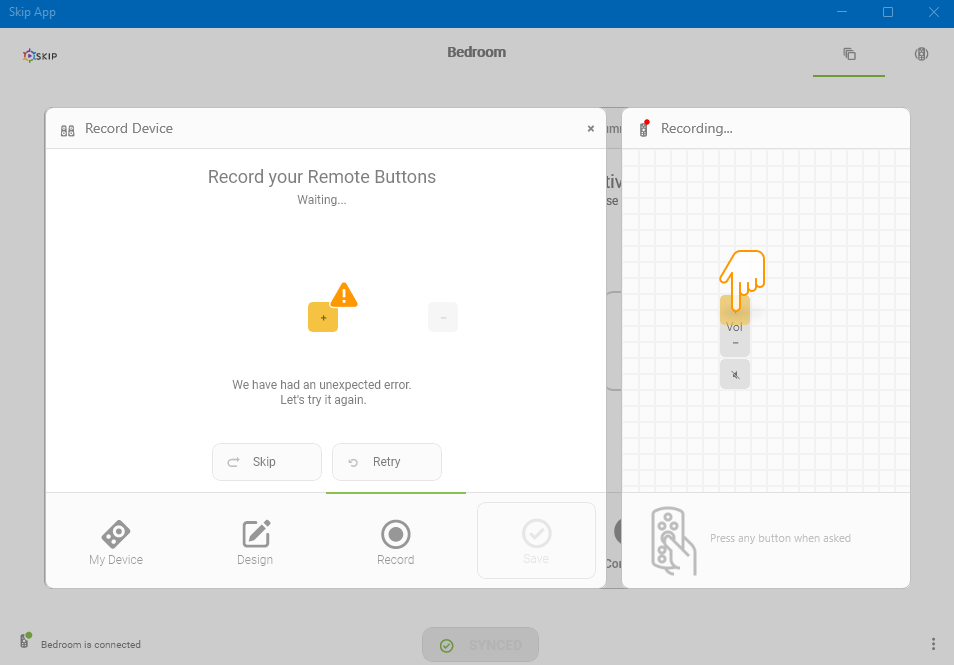
I set up using the generic Hisense sound profile in the software, and volume up and down works fine, but the mute option does not. I attempted to just add the remote and program the button, but when I do so, I get a generic error that something went wrong and can't add the buttons manually.... any ideas? Here is the error I am getting:
-
 Here's my setup: [Various Devices (TV, Xbox, Roku, etc)] --> HDMI Switch --> Video Capture Card --> Mac The HDMI switch uses an IR remote to switch inputs. What I'd like to do is have the Mac programmatically switch inputs on the HDMI switch. I have a FlircUSB and I know I can record the button presses from the HDMI switch remote. Where I'm stuck is how do I tell the FlircUSB to transmit an IR signal?
 -
USB Flirc V2, OneForAll URC-7960 remote set up for Media Center configuration In GUI I modify configuration for Kodi. Arrow keys and digits work out of the box. I program all the remaining keys I need (back, info, menu, epg and media control keys) without any issues. Problem: The programmed keys work very erratically: In the GUI, Play and Stop are never detected as pressed; Pause, Rew, FF, Previous, Next like on 1 in 5 attempts, the others are detected like on 3 in 4 attempts. In Kodi, all the keys seem to work the same - about 1 in 2 attempts is not detected; of the detected ones, 1 in 3 results in multiple keypresses. I attach saved config and log from pressing all the Media Control keys - in the log there seem to be no problems - either with lack of detection or duplicating keypresses (the latter seem to happen sometimes, but less often than in the GUI/Kodi). Please advise what can be the problem. One remark - the remote worked without any issues with an Intel NUC computer with build-in IR receiver. my_flirc_log.txt my_flirc_config.fcfg
-
I have a problem while programming my flirc. I am able to program 4 or 5 keys, but after a few keys the failure-message is shown, that the key is already programmed. I have no chance to redo it, because the message won't dissapear. I have two flirc. One 1st gen and the new one 2nd gen. I have had no problems while programming the 1st gen one. Maybe there is a problem with the firmware or the software? I have already updated the firmware but no change.... Maybe anybody can help me with this problem...
-
Hello, I'm a newbie and I bought a flirc 2gen to extend my wetek hub functionality. It is sitting next to my cubox-i. Problem is I control my cubox-i with a MCE windows remote and Flirc receive those commands. I'd like flirc to receive only instructions from the remote I used to acquire commands so remote of one device doesn't mess with other device. Is that possible? Thanks Giorgio
-
I hope to use Flirc with Raspbmc but am new to Raspbery Pi and do not know how to download the Flirc program. I tried to program Flirc on a Macbook Air using an EyeTV remote. I keep getting "Button already exists - Start Over, Skip, Redo". I tried all three choices - no help. I tried "Clear Configuration" - no help. I tried "Erase" - no help. HELP.


