Skip to content
View in the app

A better way to browse. Learn more.

Flirc Forums

A full-screen app on your home screen with push notifications, badges and more.

To install this app on iOS and iPadOS
  1. Tap the Share icon in Safari
  2. Scroll the menu and tap Add to Home Screen.
  3. Tap Add in the top-right corner.
To install this app on Android
  1. Tap the 3-dot menu (⋮) in the top-right corner of the browser.
  2. Tap Add to Home screen or Install app.
  3. Confirm by tapping Install.
  • Search By Tags

    Search will match any tag entered
  • Search By Author

Content Type

Forums

  • Flirc forums
    • Skip
    • Flirc USB
    • Raspberry Pi Cases
    • Flirc USB Gen1
    • Jeff Probe

Find results in

Find results that contain...

Date Created

  • Start

    End

Last Updated

  • Start

    End


Filter by number of...

  • Minimum number of replies

  • Minimum number of views

Found 1 result

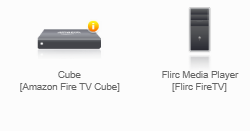
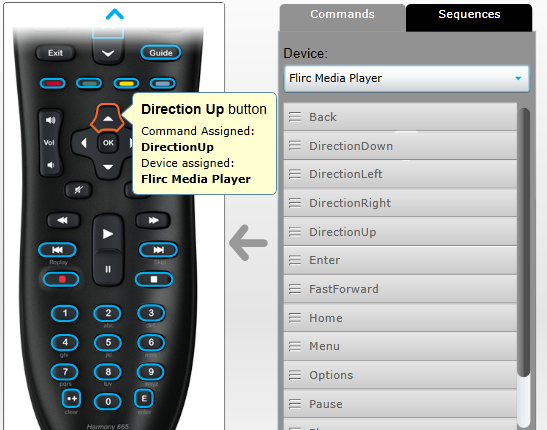
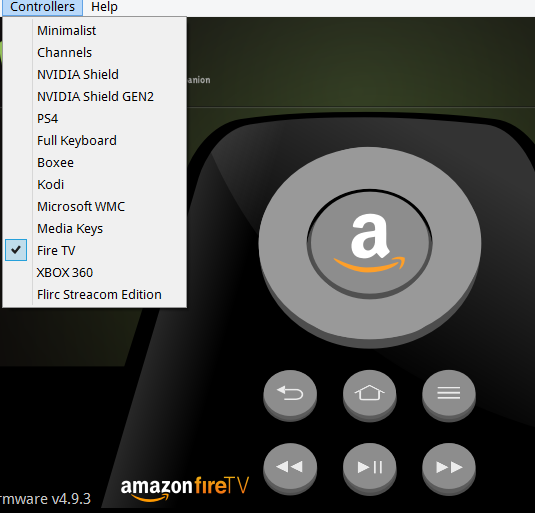
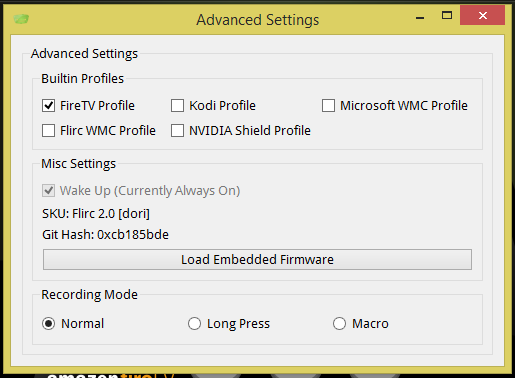
  1. Hi All, I recently bought a FireTV Cube and the plan was to control it with my Harmony 665. I had read on the web about the Flirc workaround to the native BT protocol used by the Cube remote and remembered that I have a Flirc G2 bought in 2017 still in the box for lack of an application. Plugged it in my Windows 8.1 and upgraded the firmware to 4.9.3 After that, I continued with the following steps: Programmed Flirc selecting the Fire TV controller and the FireTV built-in Profile In MyHarmony, I added Flirc Media Player [Flirc FireTV], then went on to assign the Flirc buttons to the remote buttons Set ADB Debugging to OFF in the Cube's settings Plugged Flirc in the OTG cable and the cable in the Cube dongle Unfortunately, it does not seem to work and was wondering if anyone could help me troubleshoot it. Did I miss/do something wrong? Is there a quick way of figuring out whether there is a problem with the Flirc unit? It seems to be responsive, I have not gotten any error messages. Thanks.
Account

Navigation

Search

Search

Configure browser push notifications

Chrome (Android)
  1. Tap the lock icon next to the address bar.
  2. Tap Permissions → Notifications.
  3. Adjust your preference.
Chrome (Desktop)
  1. Click the padlock icon in the address bar.
  2. Select Site settings.
  3. Find Notifications and adjust your preference.